 TraderSign
Connect cTrader
Link your cTrader account so your trades sync automatically.
Connect your cTrader account to give TraderSign read-only access to your trade history.
What you need
- Your cTrader ID (email) and password.
- Browser pop-ups enabled for id.ctrader.com.
Step 1: Open auto sync settings
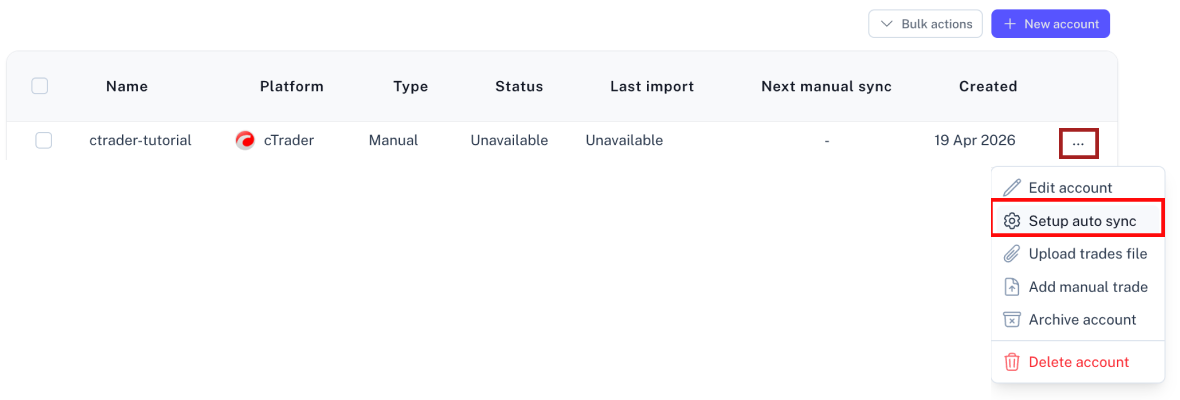
- Go to your Accounts page.
- Find your cTrader account, click the three dots (...), and select Setup auto sync.
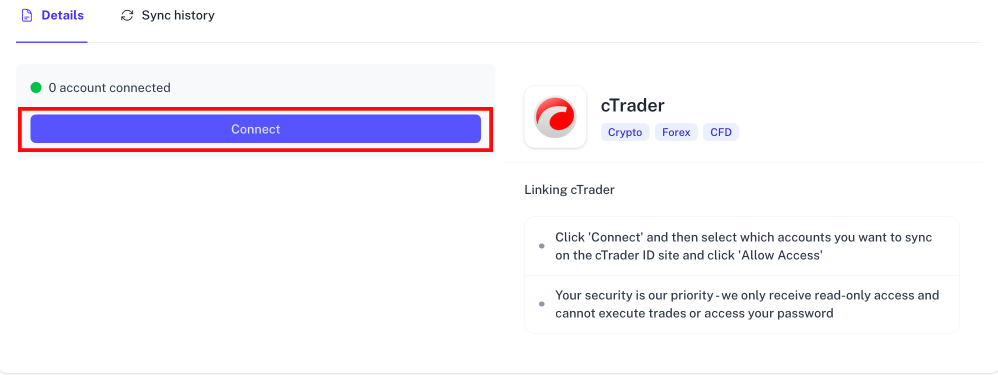
- Click the purple Connect button.
Step 2: Authorize the connection
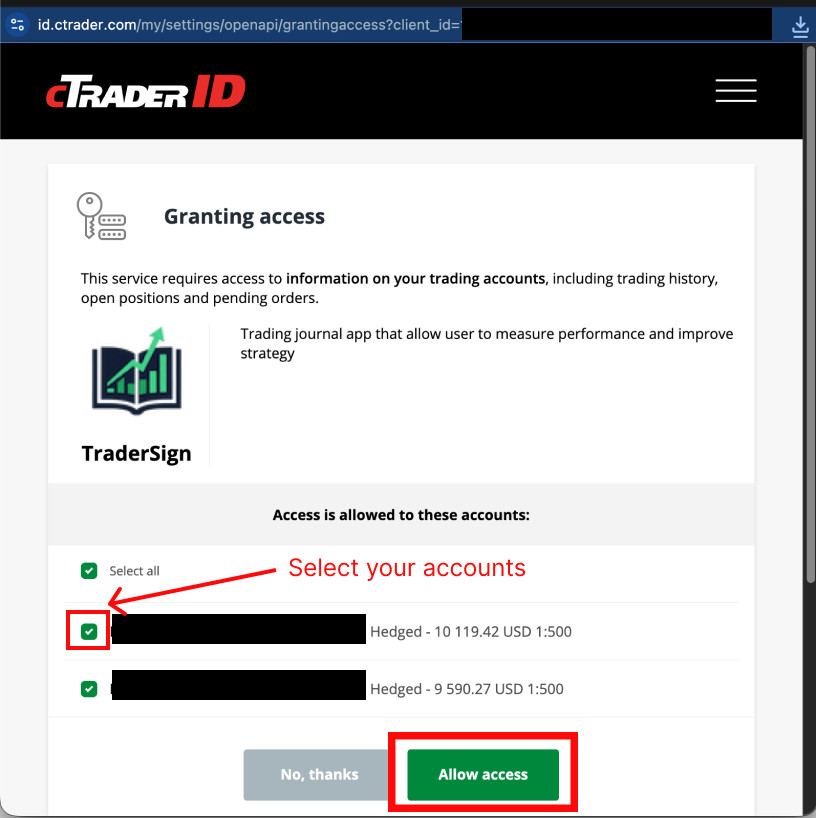
A new window opens from id.ctrader.com.
- Log in with your cTrader credentials.
- Select accounts. Choose the trading accounts you want to sync.
- Click Allow access.
Step 3: Wait for the first sync
Your account moves to CONNECTING, then SYNCING. The first sync can take a few minutes, depending on how many trades you have. See sync statuses for what each status means.
Troubleshooting
The login window doesn't open
Look for a "pop-up blocked" icon in your browser's address bar and choose Always allow pop-ups from TraderSign.
The sync doesn't work
- Check your cTrader ID. Make sure you logged in with the one linked to your trades.
- Turn off ad blockers if the connection seems stuck after you authorize.
- Open Import history to see the exact error from cTrader.
Didn't solve it?Email support