
Appearance
Connect MetaTrader
Connect your MT4 or MT5 account for automatic trade syncing.
This guide provides the steps to link your MetaTrader account using broker credentials.
Prerequisites
- Broker & Server Name: Exact server name as shown in MetaTrader (e.g., ICMarkets-Demo01).
- Account Number
- Investor Password: Read-only access is recommended for syncing.
Step 1: Open Auto Sync Settings
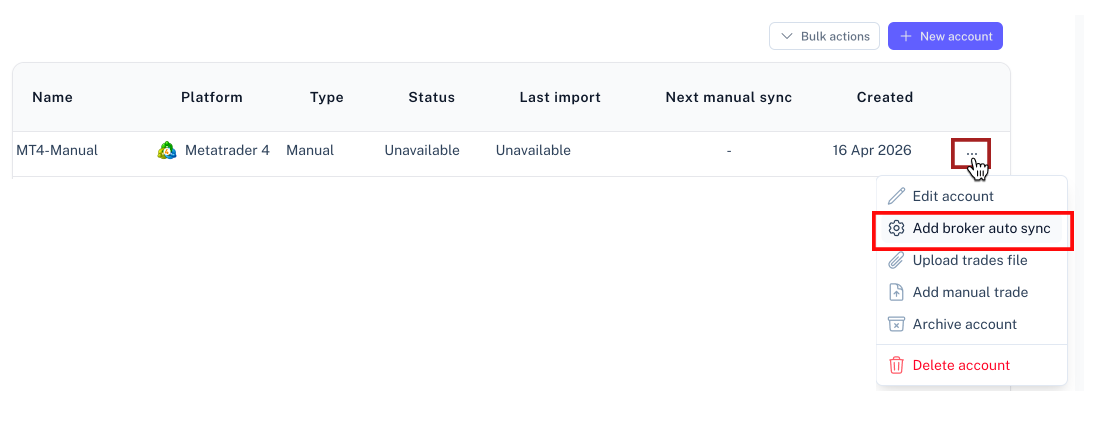
- Go to your Accounts page.
- Locate the MetaTrader account and click the menu (three dots).
- Select Add broker auto sync.
Step 2: Enter Connection Details
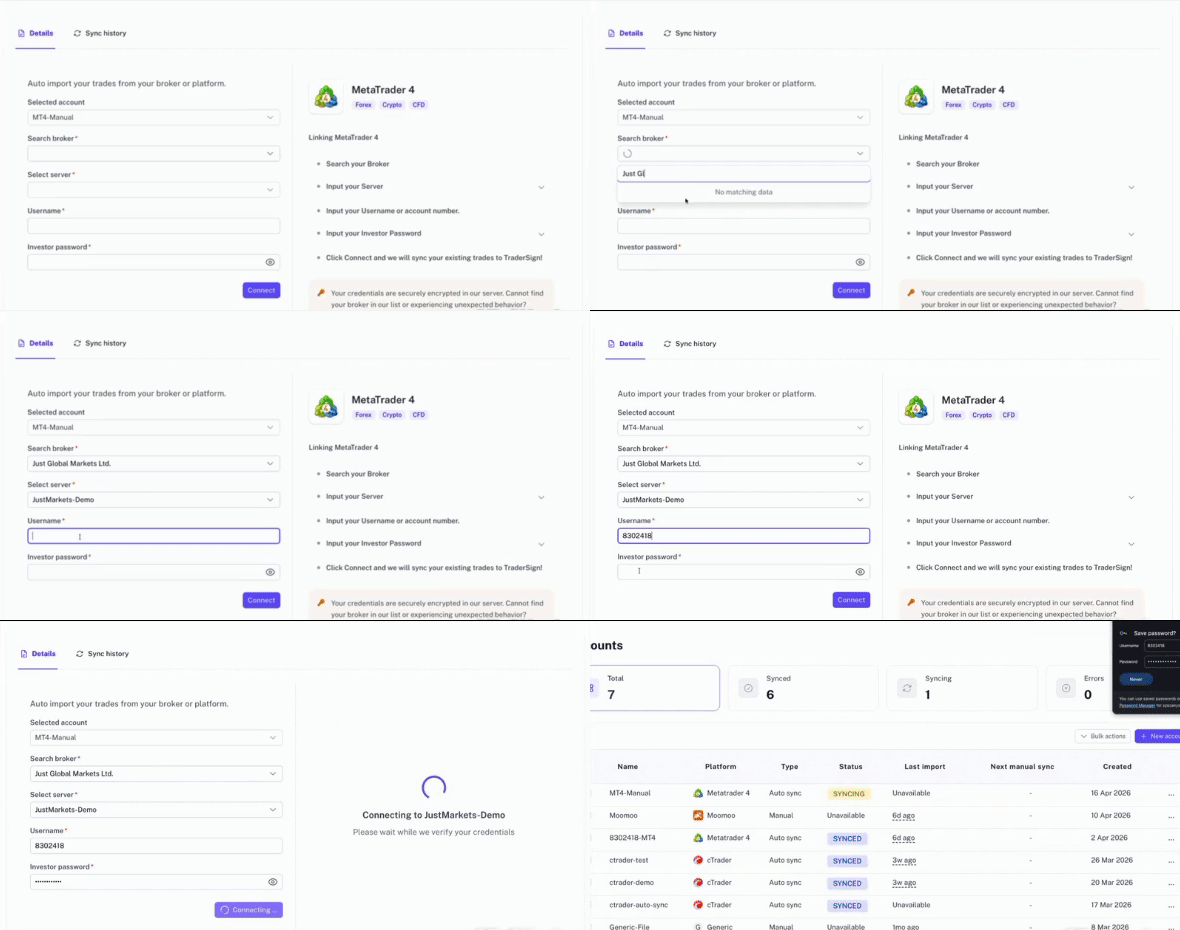
Enter your broker, server name, and credentials. Ensure the server name matches your MetaTrader terminal exactly.
Click Connect to link the account.
Step 3: Process Initial Sync
Once connected, TraderSign will perform an initial import. This may take several minutes depending on your trade history.
You'll see these statuses:
- PENDING: We've received the request and you're in the queue.
- SYNCING: We're actively talking to the broker and bringing in trades.
- SYNCED: Everything is up to date!
Troubleshooting Tips
Why are my times off by an hour?
MetaTrader brokers use their own server times, which don't always match your local time. If your trades look slightly shifted (e.g., exactly one hour early or late), it's usually a Daylight Saving Time (DST) thing.
How to fix it:
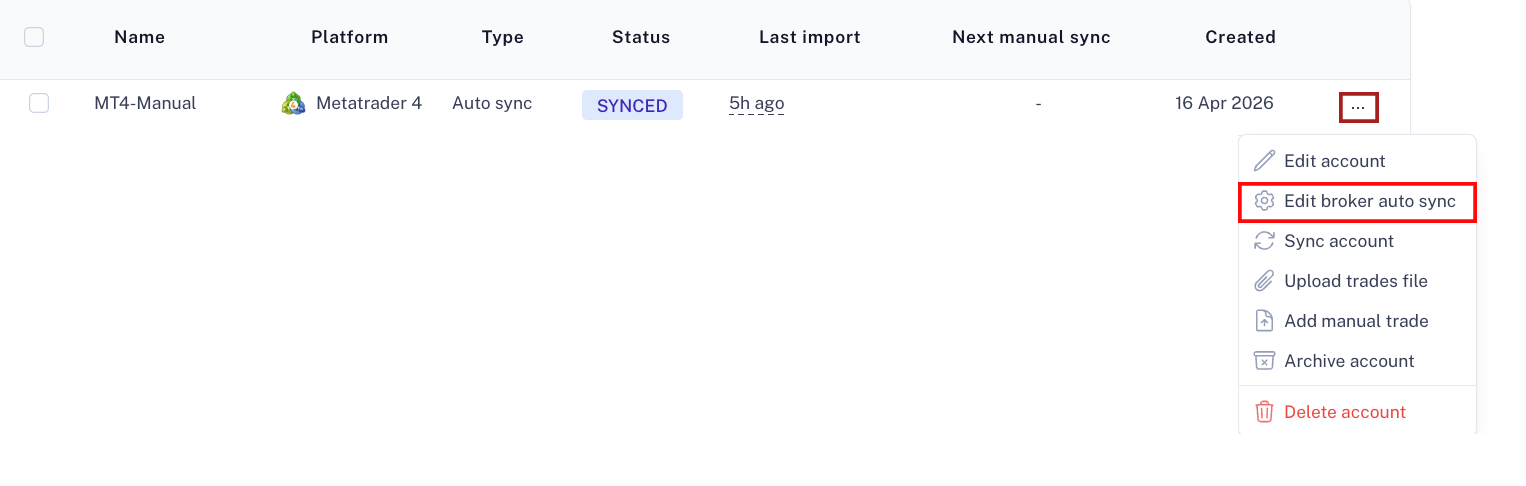
- Go to Accounts and click the menu (three dots) of the account and select Edit broker auto sync
- Find the Broker Server Time setting.
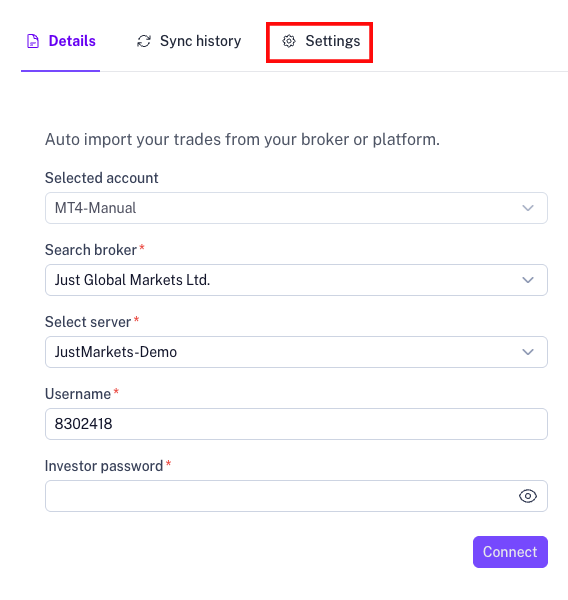
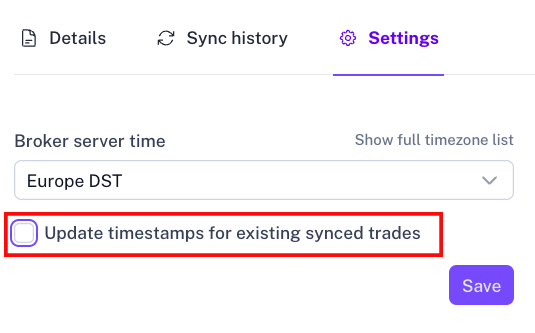
- Switch between the DST options (like "US DST" vs "Europe DST") to see which one matches your broker's server.
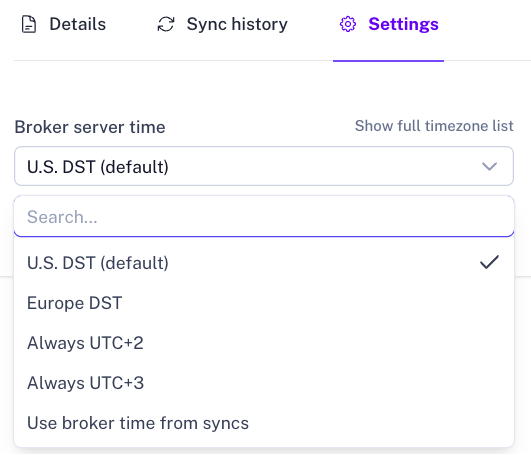
- If you want to fix trades we've already imported, look for the Update timestamps for existing synced trades toggle.
Common connection errors
- Server: Some brokers have very similar server names (e.g., Live vs. Live-01).
- Platform: Make sure you picked MT4 if it's an MT4 account (and MT5 for MT5).