
Appearance
Sync Now & Cooldowns
Refresh your trade history on demand using the manual sync feature.
Manual syncing allows you to import the latest trades from your broker immediately. By default, TraderSign runs an automatic sync every 3 hours, but you can trigger a manual refresh as needed.
How to Trigger a Manual Sync
- Navigate to Accounts.
- Select the specific account.
- Open the Sync History panel.
- Click Sync Now.
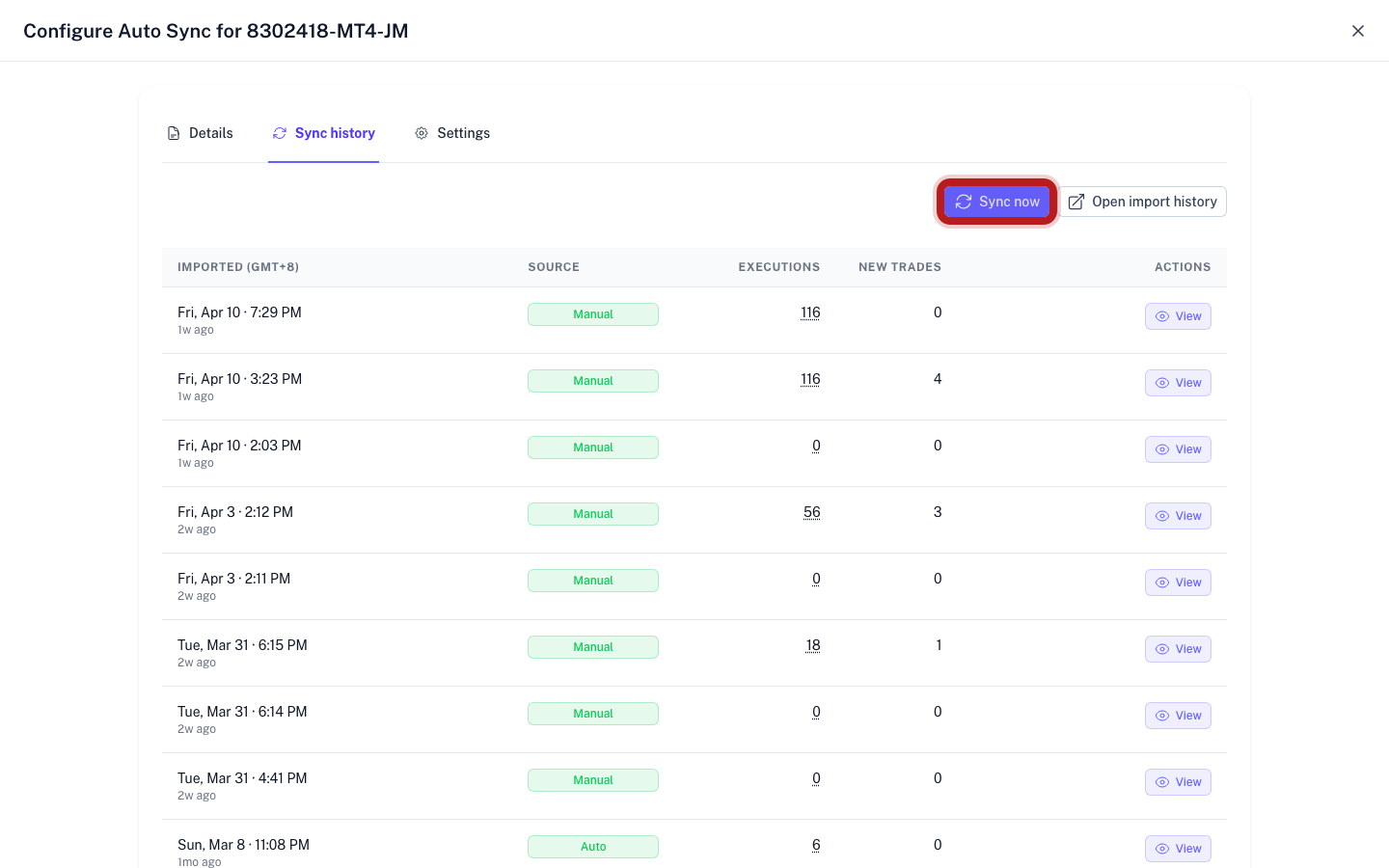
Reasons for Disabled Button
If the Sync Now button is inactive, it is likely due to one of the following:
1. Active Sync in Progress
The button is disabled while a sync is currently running to prevent duplicate data and server errors.
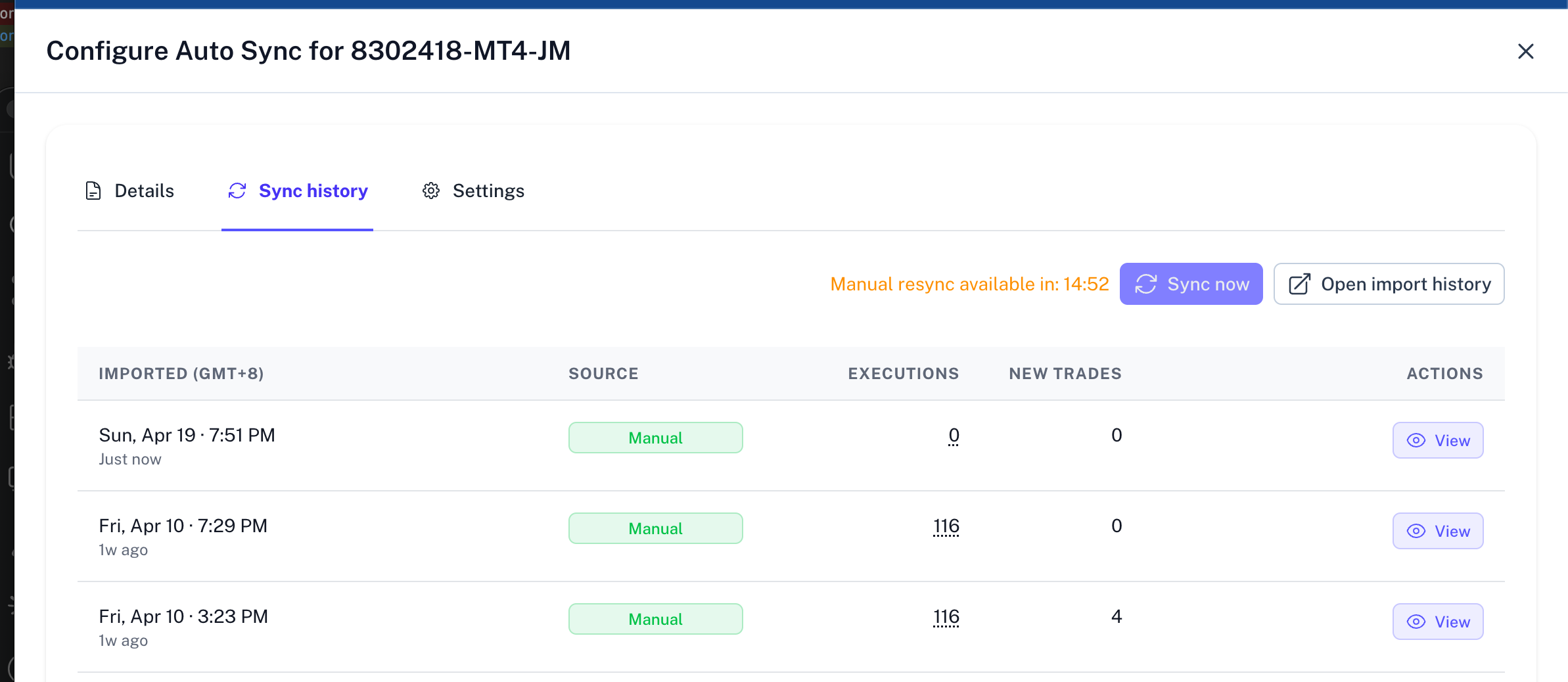
2. Sync Cooldown
To maintain stable connections with brokers, manual syncs are subject to a 15 minutes cooldown. If you have recently completed a sync, you must wait until the timer expires before triggering another.
Troubleshooting
- Verify Status: Check if a scheduled background sync is already queued.
- Refresh Dashboard: Occasionally, the UI may not immediately reflect a completed sync; refresh the page to view updated data.
- Wait for Cooldown: Cooldown periods are exactly 15 minutes from the last successful sync.