
Appearance
Connect cTrader
Authorizing read-only access to your cTrader history for automatic syncing.
This guide explains how to connect your cTrader account to TraderSign.
Prerequisites
- cTrader ID (email) and password.
- Browser popups enabled for id.ctrader.com.
Step 1: Open Auto Sync Settings
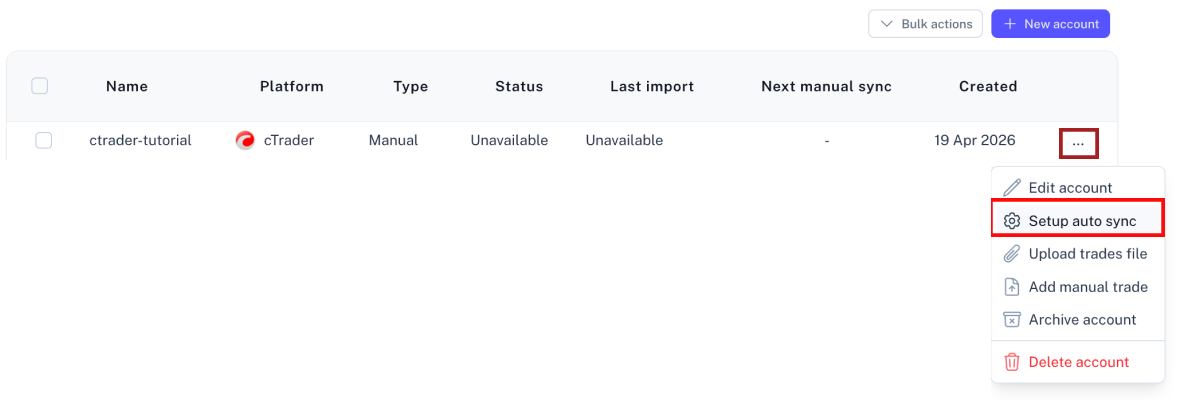
- Go to your Accounts page.
- Find your cTrader account, click the three dots (...), and select Setup auto sync.
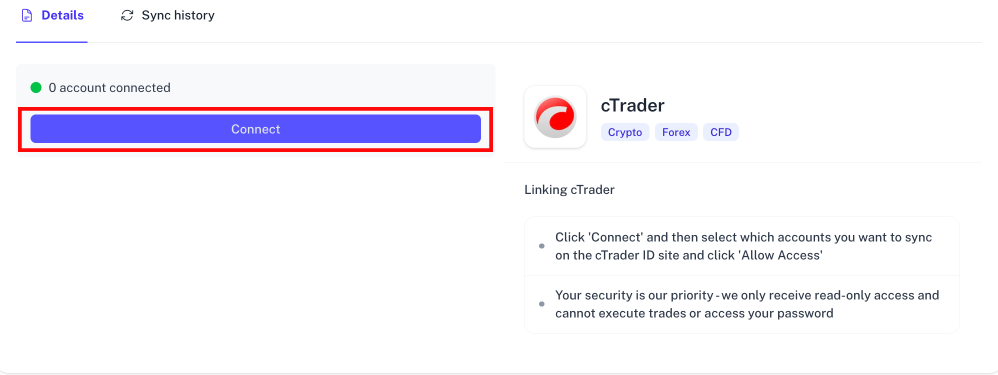
- Click the purple Connect button.
Step 2: Authorize Connection
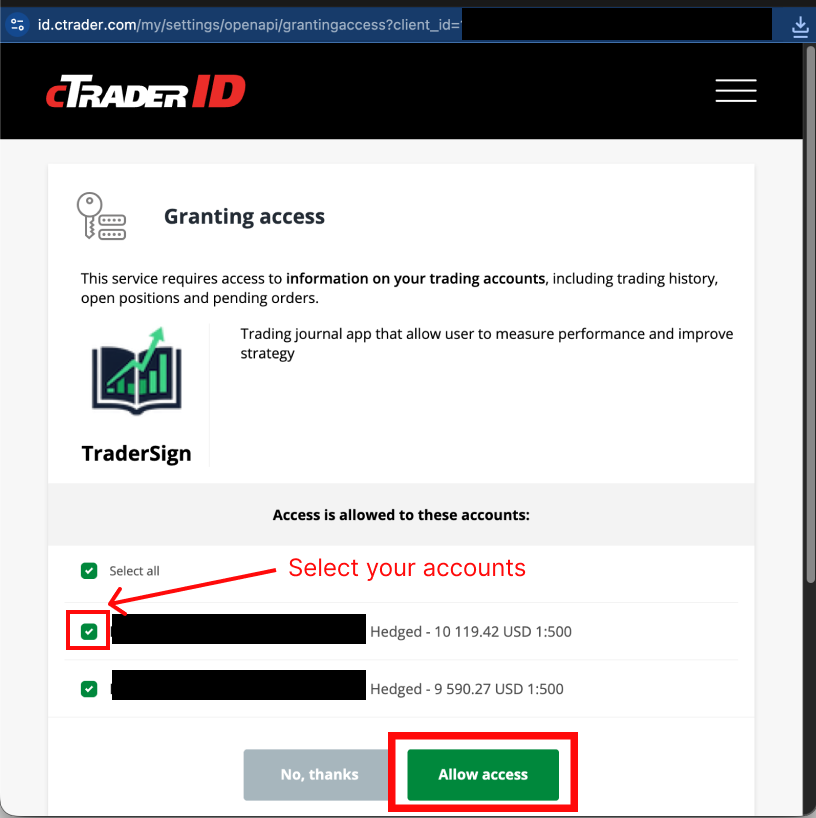
A new window will open from id.ctrader.com.
- Log in with your cTrader credentials in the popup window.
- Select Accounts: Choose the specific trading accounts to sync.
- Grant Access: Click Allow access.
Step 3: Process Initial Sync
Once authorized, your account will move to CONNECTING or SYNCING. This process may take a few moments depending on your trade volume.
Troubleshooting
Popup Blocked
If the login window doesn't appear, look for a "popup blocked" icon in your browser's address bar and select Always allow popups from TraderSign.
Sync Issues
- Verify Account: Ensure you logged into the exact cTrader ID associated with your trades.
- Extensions: Disable ad-blockers if the connection feels stuck after authorization.
- Check History: Visit your Import History to see specific error messages from cTrader.