
Appearance
Upload a Trades File
Import trade history manually by uploading your broker's exported history files.
Manual uploads allow you to import data from platforms that do not support auto-sync or for accounts where you prefer manual control over history imports.
Prerequisites
- Supported Formats: CSV, XLS, and XLSX.
- Timezone Accuracy: You must select the timezone that matches the timestamps inside the file to ensure trade dates are recorded correctly.
Step 1: Open the Upload Area
- Navigate to Accounts.
- Locate the target account.
- Open the account menu (...) and select Upload trades file.
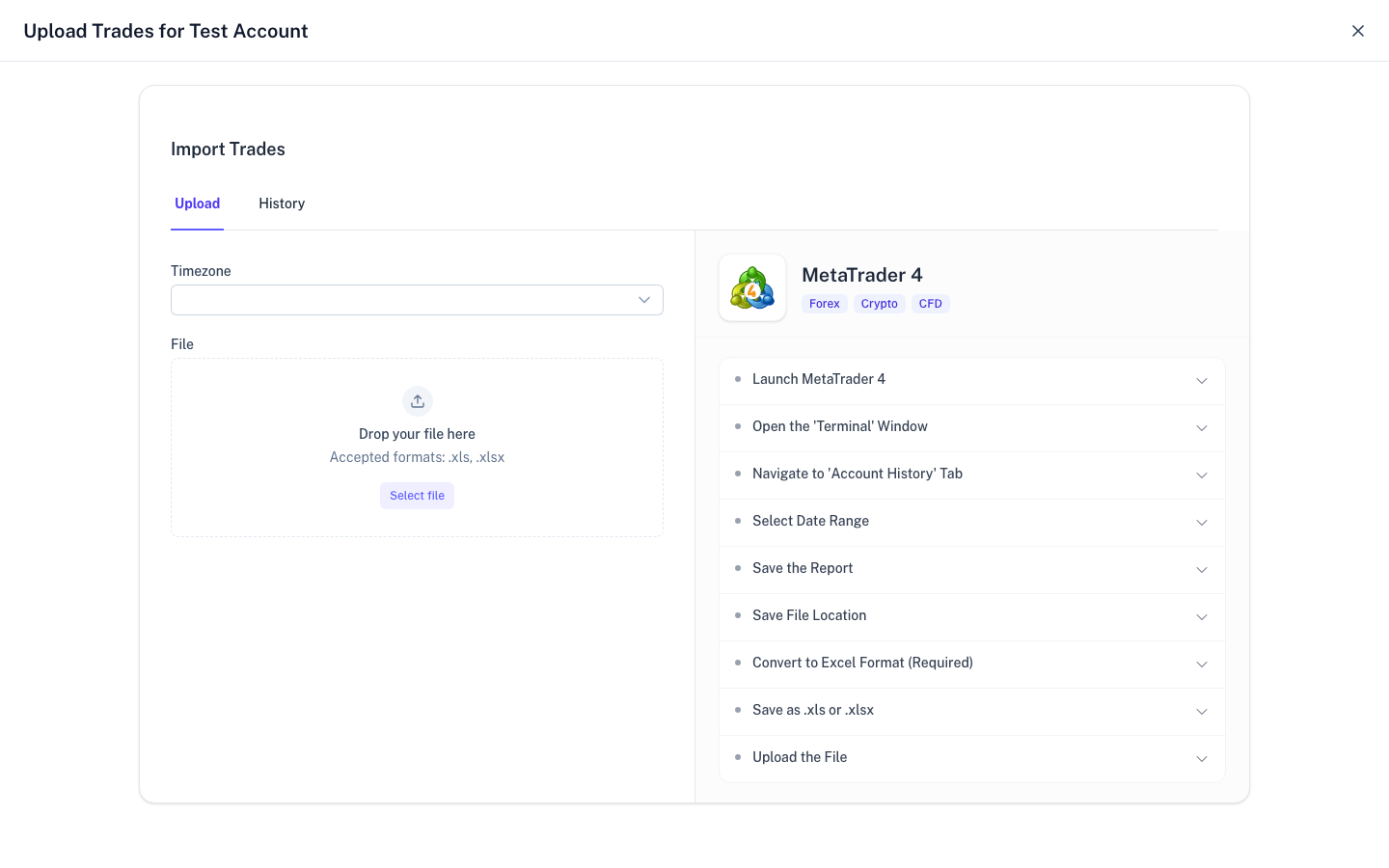
Step 2: Configure Timezone
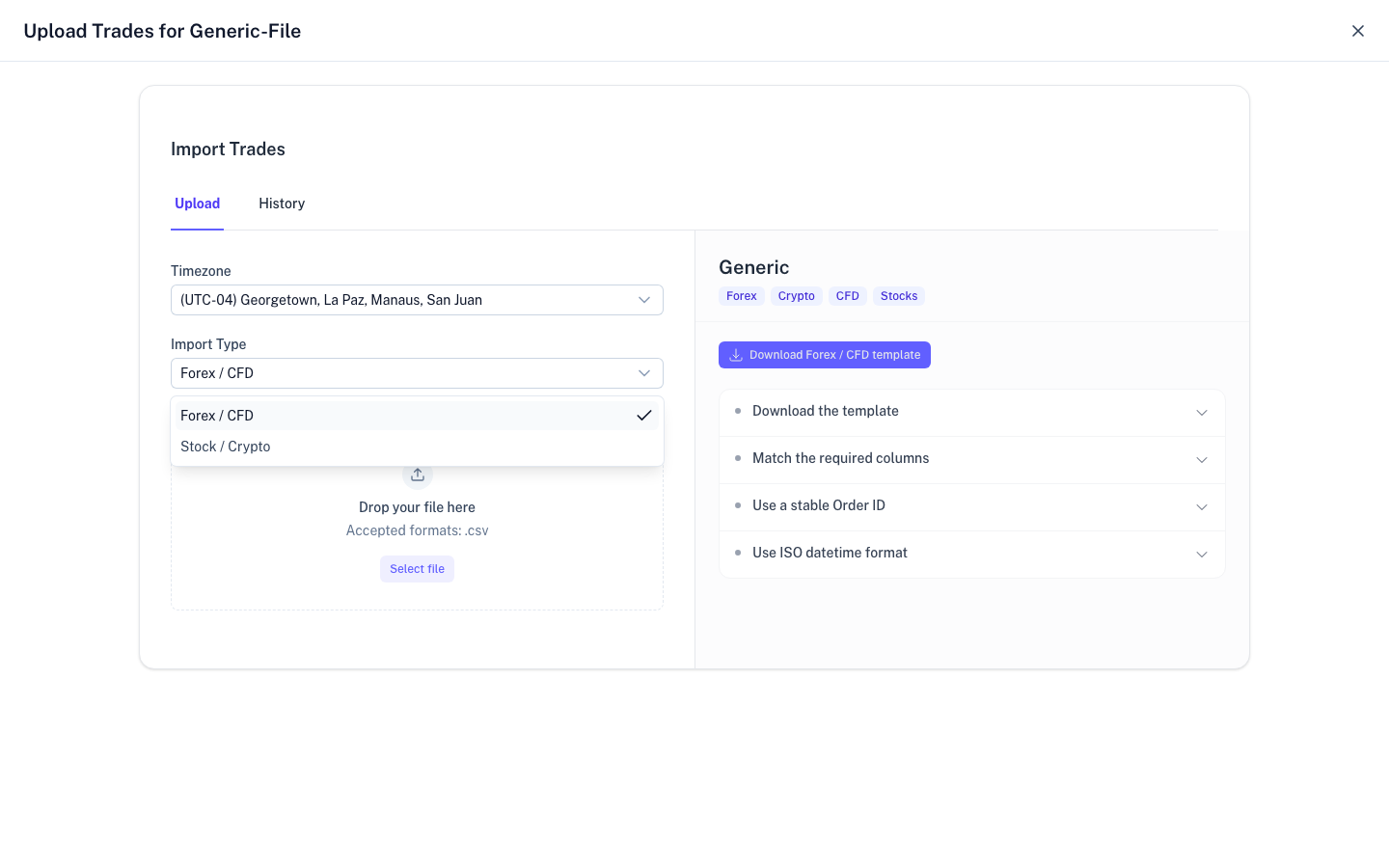
Select the timezone corresponding to the data in your file. For example, if your broker exports in UTC, select UTC from the dropdown, regardless of your local time.

Step 3: Upload and Review
Drag your file into the upload zone or browse to select it. Upon completion, a summary will display the number of successful imports.
Troubleshooting
Incorrect Trade Dates
If trades appear on the wrong day, it is likely due to a timezone mismatch. Delete the imported trades from your log and re-upload with the correct timezone setting.
Missing Columns
Each platform template (MetaTrader, NinjaTrader, etc.) requires specific column headers. Ensure you have not renamed or removed columns in your spreadsheet.
Duplicate Trades
TraderSign attempts to skip duplicates based on unique Transaction IDs. To avoid issues, only upload new trade data rather than re-uploading entire histories.