
Appearance
How do I remove demo trades and start fresh?
Clear demo data when you are ready to stop exploring and begin using TraderSign with your real trades.
If you explored TraderSign using demo data or Playground Mode, you may want to clear that sample content before setting up your real account.
This is the correct step when:
- you are done exploring the app
- you want your dashboard to reflect only real data
- you are ready to connect a broker or upload real history
What clearing demo data does
Clearing demo data usually removes:
- the demo account
- sample trades
- related demo journal or dashboard content created from the sample data
It prepares the app for a clean real-data setup.
How to remove demo trades
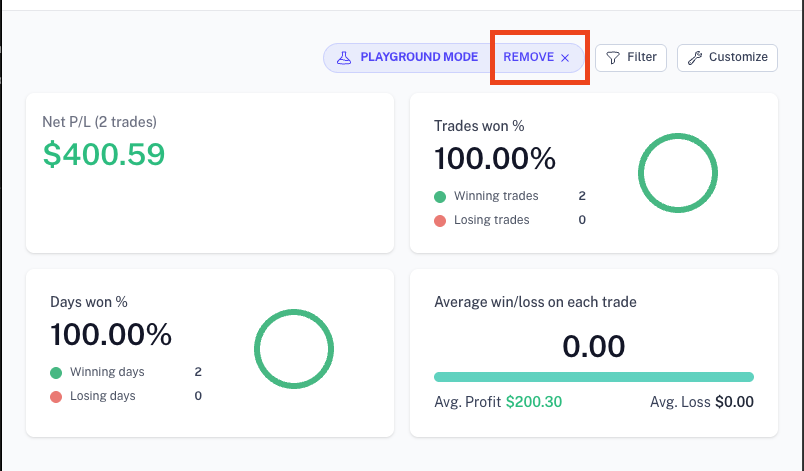
- Open the dashboard or the area where the demo or Playground controls appear
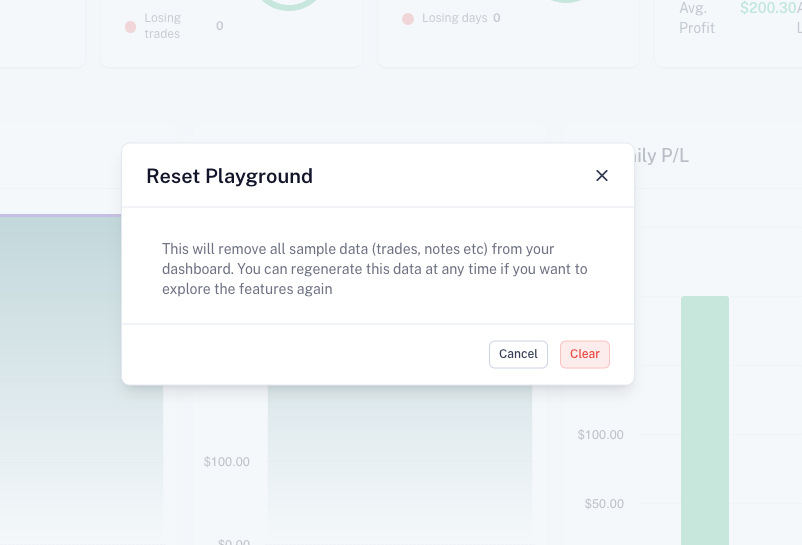
- Click Clear demo data or Reset Playground
- Confirm the action
What to do after clearing it
Once the demo data is removed, your next step should usually be:
- go to Accounts
- create your real trading account
- choose an import method
- connect broker sync or upload your trade history